At Alaska Digital Partners, we believe everyone should feel confident using the internet. Email is one of the first tools many people need for daily life. You may need it for school, work, health updates, online accounts, or staying in touch with family. This guide will help you choose an email service, create your account, keep your inbox organized, and stay safe while using it.
Start with a safe and useful account.
An email account gives you a private place to send and receive messages online. It also helps you sign in to many other services. Once your account is set up, your main work area is your Inbox. This is where new messages arrive.
Why does email matter?
- It helps you receive important updates.
- It is often needed to create other online accounts.
- You can save messages for later.
- You can use it on a phone, tablet, or computer.
PROVIDER
Choose a service you can trust.
Before you create an account, you need to choose an email provider. A provider is the company that gives you your email address and inbox.
Common choices:
- Gmail — ends in
@gmail.com - Outlook or Hotmail — often ends in
@outlook.comor@hotmail.com - Yahoo Mail — ends in
@yahoo.com
How do you choose?
- Pick a well-known service.
- Pick one that feels easy to read and use.
- Pick one you can remember.
- If your phone already uses Google, Gmail may feel simpler.
- If you already use Microsoft services, Outlook may fit better.
Most people do well with any of these three. The best choice is the one you can use with confidence.
ADDRESS
Pick a clear name for your mailbox.
Your email address is your personal mailing address online. It often looks like this: name@service.com

The parts are simple:
- Name: The part you choose, such as
mary.alaska - @ Symbol: This connects your name to the provider
- Service: The provider name, such as
gmail.com,outlook.com, oryahoo.com
Try to choose a name that is:
- Easy to spell
- Easy to say out loud
- Professional enough for school, work, and community use
A good example is mary.alaska@gmail.com. Avoid confusing names with too many extra numbers if you can.
SETUP
Create your account step by step.
The setup steps are similar for Gmail, Outlook or Hotmail, and Yahoo.
Step 1: Go to the provider website
Type one of these into your browser:
www.gmail.comwww.outlook.comwww.yahoo.com
Look for a button such as "Create account", "Sign up", or "Create free account."
Step 2: Enter your name
Type your first and last name carefully. This may be shown when you send email.
Step 3: Choose your email address
Type the name you want before the @ sign. If that name is already taken, the provider may suggest a different one.
Step 4: Make a strong password
Your password protects your mailbox. Keep it private.
How to make a strong password:
- Make it long
- Use a mix of letters, numbers, and symbols
- Do not use easy guesses like your birthday
- Write it down and store it in a safe place if needed
Step 5: Add recovery information
You may be asked for a phone number or another email address. This helps you get back into your account if you forget your password.
Step 6: Follow the on-screen steps
The provider may ask you to confirm your phone number, solve a simple puzzle, or review privacy choices. Read each screen slowly. If you do not understand a choice, pause before you click.
INBOX
Keep your messages easy to find.
Once your account is ready, your Inbox will hold new messages. Over time, it can fill up. A little organizing can save you stress.
Here are the main places you may see:
- Inbox — new and current messages
- Sent — messages you already sent
- Drafts — messages you started but did not finish
- Trash or Deleted — messages you removed
- Spam or Junk — unwanted or suspicious messages
Some services also use tabs like Primary, Promotions, or Social. These help sort messages automatically.
FOLDERS
Sort messages into simple groups.
You can organize your email by using folders or labels. This helps you keep important messages in one place.
You might create folders such as:
- Family
- Work
- Health
- School
- Bills
- Community
Basic steps:
- Look for Folders, Labels, or New Folder
- Create a folder with a short name
- Open a message
- Choose Move to or Label
- Select the folder you want
Ask yourself: which messages do I need to find again later? Move those first.
SPAM
Remove unwanted messages safely.
Spam is unwanted email. Some spam is just annoying. Some spam is dangerous.
How to manage spam:
- If a message looks fake, do not answer it
- Do not click links from strangers
- Do not open attachments you were not expecting
- Use the Spam or Junk button to report bad messages
- Delete obvious scam messages if needed
Reporting spam helps train your email service to block similar messages later.
SAFETY
Protect your account and your private information.
At Alaska Digital Partners, we care deeply about privacy and safe use. Email is useful, but it can also be used by scammers. Slow down and check carefully.

Follow these basic rules:
Protect your password
Never share your password by email, text, or phone unless you are fully sure who you are talking to. Real companies do not ask for your password in an email.
Check the sender
Look closely at who sent the message. A scam message may use a name you know, but the email address may be strange or misspelled.
Be careful with links
If an email tells you to click fast, pay money, or fix a problem right away, stop. This pressure is a warning sign.
Use recovery tools
If your email service offers extra protection, such as a code sent to your phone, consider turning it on.
Sign out on shared devices
If you use a public computer, always sign out before you leave.
Do not send private records
Avoid sending sensitive information like bank details, identity numbers, or medical records through regular email unless you are using a trusted secure system.
TRAINING
Learning together to grow our community skills.
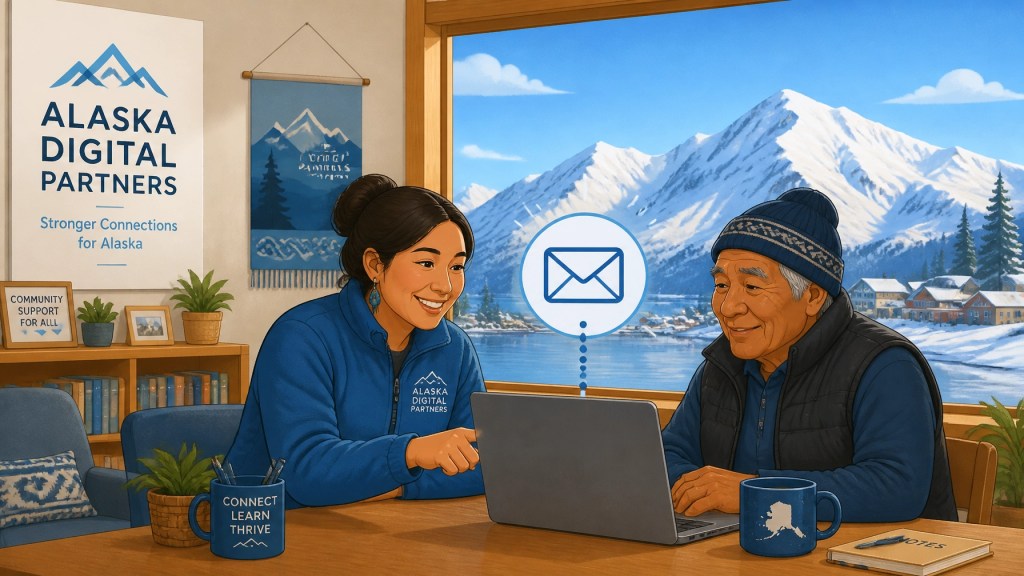
Learning something new is always easier when you do it with others. We host regular sessions to help people in our tribal communities get comfortable with these basic internet tools. Our workshops are slow, patient, and designed for people who have never used a computer before.

Do you have a question about setting up your email? Are you worried about a strange message you received? We are here to help. You can visit our contact page to find out when our next local session will be.
Starting next Friday, look out for our new Future Fridays series where we explore what's coming next in technology! Every Friday we'll post about new tech features and tools coming to the market…